keycloak ユーザーストレージSPI
keycloak を試した時のメモ
ユーザー・ストレージSPI
keycloak-documentation.openstandia.jp
ユーザー・ストレージSPIを使用して、外部ユーザー・データベースとクレデンシャル・ストアに接続するように、Keycloakの拡張機能を実装できます。組み込みのLDAPとActive Directoryのサポートは、このSPIを実際に実装したものです。設定などの作業をせず、すぐにKeycloakはローカル・データベースを使用して、ユーザーの作成、更新、検索とクレデンシャルの検証をします。 しかし、多くの場合、組織はKeycloakのデータモデルに移行できない外部の独自ユーザー・データベースをすでに持っています。このような状況では、アプリケーション開発者は、ユーザー・ストレージSPIの実装をコーディングして、外部ユーザーストアと、Keycloakがユーザーのログインおよび管理に使用する内部ユーザー・オブジェクト・モデルをブリッジすることができます。
ブリッジを書けば、独自ユーザーの認証ができるようになる。
dasniko/keycloak-user-spi-demo
これを利用させてもらう。 git clone し mvn install で jar を作っておく。keycloak に jar をコピーして起動。
git clone https://github.com/dasniko/keycloak-user-spi-demo.git
cd keycloak-user-spi-demo
mvn install
docker create -p 8080:8080 -e KEYCLOAK_USER=admin -e KEYCLOAK_PASSWORD=password --name keycloak jboss/keycloak
docker cp ./target/keycloak-demo-user-spi.jar keycloak:/opt/jboss/keycloak/standalone/deployments/
docker start keycloak
keycloak に admin/password で入り、 user federation に demo-user-provider があるので選択しsave。
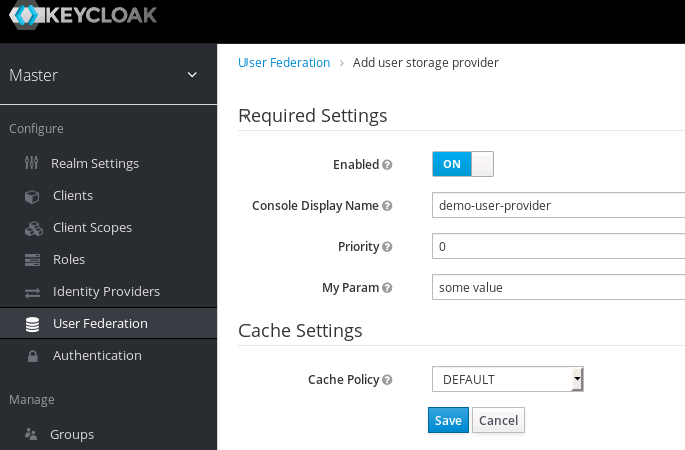
すると users に keycloak-user-spi-demo のユーザーが表示される。
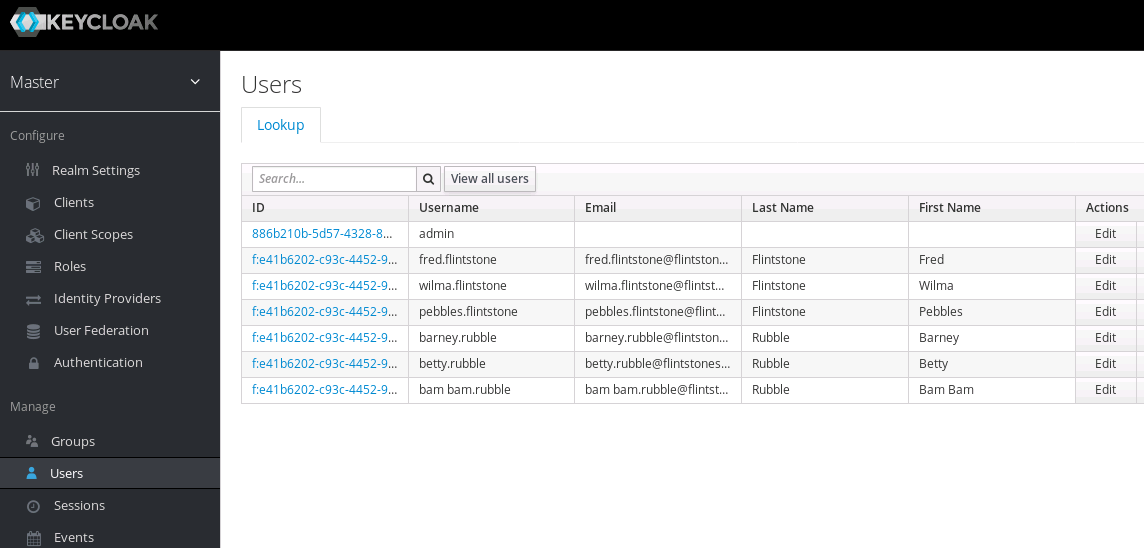
ここ から username/password がわかる。
demo-user でログイン
あとは fred.flintstone/fred でkeycloakに入ったり、ロール付けたりするといいんじゃないですかね。
cuelang kubernetes チュートリアル#2
cuelang kubernetes チュートリアル#2
前回はディレクトリに散らばった yaml を cue にした。今回は cue をスリムにしていく。クイックダーティーコンバージョン
https://github.com/cuelang/cue/tree/master/doc/tutorial/kubernetes#quick-n-dirty-conversion
cue eval -c ./... > snapshot
ディレクトリ下の cue ファイルを評価し snapshot を得る。改変しても差異がないことを検証するため取っておく。
Usage:
  cue eval [flags]

Flags:
  -c, --concrete                 require the evaluation to be concrete
                                 評価を具体的にする必要がある
snapshot
service: {
    bartender: {
        apiVersion: "v1"
        kind:       "Service"
         metadata: {
            name: "bartender"
            labels: {
                component: "frontend"
                app:       "bartender"
                domain:    "prod"
            }
:
cp frontend/breaddispatcher/kube.cue .
テンプレートを作成するため deployment と service を含むファイルをコピーする。kube.cue をシンプル化していくのだが変更前の状態を確認しておく。
frontend/breaddispatcher/kube.cue
package kube

service: breaddispatcher: {
    apiVersion: "v1"
    kind:       "Service"
    metadata: {
        name: "breaddispatcher"
        labels: {
            app:       "breaddispatcher"
            component: "frontend"
            domain:    "prod"
        }
    }
    spec: {
        ports: [{
            port:       7080
            targetPort: 7080
            protocol:   "TCP"
            name:       "client"
        }]
        selector: {
            app:       "breaddispatcher"
            component: "frontend"
            domain:    "prod"
        }
    }
}
deployment: breaddispatcher: {
    apiVersion: "apps/v1"
    kind:       "Deployment"
    metadata: name: "breaddispatcher"
    spec: {
        replicas: 1
        template: {
            metadata: {
                labels: {
                    app:       "breaddispatcher"
                    component: "frontend"
                    domain:    "prod"
                }
                annotations: {
                    "prometheus.io.scrape": "true"
                    "prometheus.io.port":   "7080"
                }
            }
            spec: containers: [{
                name:  "breaddispatcher"
                image: "gcr.io/myproj/breaddispatcher:v0.3.24"
                ports: [{
                    containerPort: 7080
                }]
                args: [
                    "-etcd=etcd:2379",
                    "-event-server=events:7788",
                ]
            }]
        }
    }
}
次のように書き換える。kind:Service と kind:deployment のテンプレートができた。
package kube

service: [ID=_]: {
    apiVersion: "v1"
    kind:       "Service"
    metadata: {
        name: ID
        labels: {
            app:       ID    // by convention
            domain:    "prod"  // always the same in the given files
            component: string  // varies per directory
        }
    }
    spec: {
        // Any port has the following properties.
        ports: [...{
            port:       int
            protocol:   *"TCP" | "UDP"      // from the Kubernetes definition
            name:       string | *"client"
        }]
        selector: metadata.labels // we want those to be the same
    }
}

deployment: [ID=_]: {
    apiVersion: "apps/v1"
    kind:       "Deployment"
    metadata: name: ID
    spec: {
        // 1 is the default, but we allow any number
        replicas: *1 | int
        template: {
            metadata: labels: {
                app:       ID
                domain:    "prod"
                component: string
            }
            // we always have one namesake container
            spec: containers: [{ name: ID }]
        }
    }
}
この辺りを見ながら復習
inthttps://cuelang.org/docs/tutorials/tour/types/numbers/[ID=_]https://cuelang.org/docs/tutorials/tour/types/templates/*"TCP"https://cuelang.org/docs/tutorials/tour/types/defaults/*"TCP" | "UDP"https://cuelang.org/docs/tutorials/tour/types/disjunctions/ports: [...{https://cuelang.org/docs/tutorials/tour/types/lists/metadata: labels:https://cuelang.org/docs/tutorials/tour/intro/fold/package kubehttps://cuelang.org/docs/tutorials/tour/packages/packages/
cue eval ./... -c > snapshot2
再びディレクトリ下の cue ファイルを評価し snapshot2 を生成。が alert が出る。
$ cue eval ./... -c > snapshot2
/// .../kubernetes/tmp/services/mon/alertmanager
service.alertmanager.metadata.labels.component: incomplete value (string):
    ./kube.cue:11:24
service.alertmanager.spec.selector.component: incomplete value (string):
    ./kube.cue:11:24
deployment.alertmanager.spec.template.metadata.labels.component: incomplete value (string):
    ./kube.cue:36:28
:
kubernetes/tmp/services/mon/alertmanager/kube.cue を確認する。component がない。
package kube

service: alertmanager: {
    apiVersion: "v1"
    kind:       "Service"
    metadata: {
        annotations: {
            "prometheus.io/scrape": "true"
            "prometheus.io/path":   "/metrics"
        }
        labels: name: "alertmanager"
        name: "alertmanager"
    }
    spec: {
        selector: app: "alertmanager"
        // type: ClusterIP
        ports: [{
            name:       "main"
            protocol:   "TCP"
            port:       9093
            targetPort: 9093
        }]
    }
}
- kube.cue を置換
component: string->component: #Component
- kube.cue の末尾に次を追加
#Component: string
- frontend,infra ... の各ディレクトリにコンポ―メント名を指定したがファイルを生成
#Component: "frontend"
- cue ファイルをtrim
diff をとると spec.selector の domain, component が揃っていることが分かる。
snapshot2 の mon alertmanager service
service: {
    alertmanager: {
        apiVersion: "v1"
        kind:       "Service"
        metadata: {
            name: "alertmanager"
            labels: {
                name:      "alertmanager"
                app:       "alertmanager"
                domain:    "prod"
                component: "mon"
            }
            annotations: {
                "prometheus.io/scrape": "true"
                "prometheus.io/path":   "/metrics"
            }
        }
        spec: {
            ports: [{
                name:       "main"
                port:       9093
                protocol:   "TCP"
                targetPort: 9093
            }]
            selector: {
                name:      "alertmanager"
                app:       "alertmanager"
                domain:    "prod"
                component: "mon"
            }
        }
    }
}
部分 eval を試す。
$ cue eval ./mon/alertmanager -e service
alertmanager: {
    apiVersion: "v1"
    kind:       "Service"
    metadata: {
        name: "alertmanager"
        labels: {
            name:      "alertmanager"
            app:       "alertmanager"
            domain:    "prod"
            component: "mon"
        }
        annotations: {
            "prometheus.io/scrape": "true"
            "prometheus.io/path":   "/metrics"
        }
    }
    spec: {
        ports: [{
            name:       "main"
            port:       9093
            protocol:   "TCP"
            targetPort: 9093
        }]
        selector: {
            name:      "alertmanager"
            app:       "alertmanager"
            domain:    "prod"
            component: "mon"
        }
    }
}
service.alertmanager を yaml で得る。
$ cue eval ./mon/alertmanager -e service.alertmanager --out yaml
apiVersion: v1
kind: Service
metadata:
  name: alertmanager
  labels:
    name: alertmanager
    app: alertmanager
    domain: prod
    component: mon
  annotations:
    prometheus.io/scrape: "true"
    prometheus.io/path: /metrics
spec:
  ports:
    - name: main
      port: 9093
      protocol: TCP
      targetPort: 9093
  selector:
    name: alertmanager
    app: alertmanager
    domain: prod
    component: mon
cue trim ./...
trim 作用はうまく説明できない。cue はこんなふうに矛盾しない限り合わせていくのだが、
- Duplicate Fields https://cuelang.org/docs/tutorials/tour/intro/duplicates/
- Order is irrelevant https://cuelang.org/docs/tutorials/tour/intro/order/
trim したときどっちに寄るんだろうとか。いい感じにしてくれるということで。
- Boilerplate removal https://cuelang.org/docs/concepts/logic/#boilerplate-removal
trim の help を見る
$ cue help trim
trim removes fields from structs that can be inferred from constraints

A field, struct, or list is removed if it is implied by a constraint, such
as from an optional field maching a required field, a list type value,
a comprehension or any other implied content. It will modify the files in place.


Limitations

Removal is on a best effort basis. Some caveats:
- Fields in implied content may refer to fields within the struct in which
  they are included, but are only resolved on a best-effort basis.
- Disjunctions that contain structs in implied content cannot be used to
  remove fields.
- There is currently no verification step: manual verification is required.

Examples:

        $ cat <<EOF > foo.cue
        light: [string]: {
                room:          string
                brightnessOff: *0.0 | >=0 & <=100.0
                brightnessOn:  *100.0 | >=0 & <=100.0
        }

        light: ceiling50: {
                room:          "MasterBedroom"
                brightnessOff: 0.0    // this line
                brightnessOn:  100.0  // and this line will be removed
        }
        EOF

        $ cue trim foo.cue
        $ cat foo.cue
        light: [string]: {
                room:          string
                brightnessOff: *0.0 | >=0 & <=100.0
                brightnessOn:  *100.0 | >=0 & <=100.0
        }

        light: ceiling50: {
                room: "MasterBedroom"
        }

It is guaranteed that the resulting files give the same output as before the
removal.
トップレベルテンプレートの編集
ここからはチュートリアル見るべき。。。
- kind 毎の共通構造と spec 構造をトップレベルテンプレートに抽出
- port 定義簡略化の工夫
- サブレベルテンプレート作成
- cue trim --simplify Folding of Single-Field Structs https://cuelang.org/docs/tutorials/tour/intro/fold/
- サブレベル毎のカスタマイズ
そうこうしているうちに
そうこうしているうちに v0.3.0-alpha3 がでている。
cuelang kubernetes チュートリアル#1
cuelang を触っている。まだ入門でたとは言えない感じだが、kubernetes チュートリアルが面白い。2周目で人に説明できるくらいになってきた。
https://github.com/cuelang/cue/tree/master/doc/tutorial/kubernetes
cue import オプション
cue import ./... -p kube -l 'strings.ToCamel(kind)' -l metadata.name -f -R

  -p, --package string           package name for non-CUE files
                                 非CUEファイルのパッケージ名
  -l, --path stringArray         CUE expression for single path component
                                 シングルパスコンポーネントのCUE式
  -f, --force                    force overwriting existing files
                                 ファイル上書き
  -R, --recursive                recursively parse string values
                                 文字列値を再帰的に解析する
cue import ./... -p kube -l 'strings.ToCamel(kind)' -l metadata.name -f で起きること
- ./... 下の yaml から cue を生成 kube.cue -> kube.yaml
- package kube を付与させる
- オブジェクトは -l 'strings.ToCamel(kind)' -l metadata.name 内に格納される オブジェクトを一意にする
- ファイル上書き
tree
$ tree . | head
.
└── services
    ├── frontend
    │   ├── bartender
    │   │   ├── kube.cue
    │   │   └── kube.yaml
    │   ├── breaddispatcher
    │   │   ├── kube.cue
    │   │   └── kube.yaml
services/frontend/bartender/kube.yaml
apiVersion: v1
kind: Service
metadata:
  name: bartender
:
---
apiVersion: apps/v1
kind: Deployment
metadata:
  name: bartender
:
services/frontend/bartender/kube.cue
package kube

service: bartender: {
    apiVersion: "v1"
    kind:       "Service"
    metadata: {
        name: "bartender"
:
deployment: bartender: {
    apiVersion: "apps/v1"
    kind:       "Deployment"
    metadata: name: "bartender"
:
cat mon/prometheus/configmap.cue
yaml 内に文字列として yaml が埋め込まれている。cue にしてもまだ文字列としてのyamlのまま、これが気に入らないと。
mon/prometheus/configmap.cue
package kube

apiVersion: "v1"
kind:       "ConfigMap"
metadata: name: "prometheus"
data: {
    "alert.rules": """           <--- ここらへんが気に入らない
        groups:
        - name: rules.yaml
cue import ./... -p kube -l 'strings.ToCamel(kind)' -l metadata.name -f -R で起きること
-Rオプションは、構成ファイルに埋め込まれた構造化されたYAMLまたはJSON文字列を検出し、これらを再帰的に変換しようとする
- alert.rules の階層に _cue_alert_rules が出現
- _cue_alert_rules の値は alert.rules の値を再帰的に解析したもの
- アンダースコア(_)で始まるフィールドは、構成ファイルの出力時(exportとかevalかな)には含まれません
- "alert.rules" の値は _cue_alert_rules の値をマーシャルしたもの
- _cue_alert_rules の アンダースコア始まりはhiddenフィールド https://cuelang.org/docs/tutorials/tour/references/hidden/
- "encoding/yaml" を yaml656e63 としてインポート
mon/prometheus/configmap.cue
package kube

import yaml656e63 "encoding/yaml"                                     <--- yaml656e63

configMap: prometheus: {
    apiVersion: "v1"
    kind:       "ConfigMap"
    metadata: name: "prometheus"
    data: {
        "alert.rules": yaml656e63.Marshal(_cue_alert_rules)   <--- yaml656e63, _cue_alert_rules
        let _cue_alert_rules = {                              <--- _cue_alert_rules
            groups: [{
                name: "rules.yaml"
                rules: [{
                    alert: "InstanceDown"
                    expr:  "up == 0"
                    for:   "30s"
                    labels: severity: "page"
                    annotations: {
                        description: "{{$labels.app}} of job {{ $labels.job }} has been down for more than 30 seconds."

                        summary: "Instance {{$labels.app}} down"
cue eval ./mon/prometheus -e configMap.prometheus
./mon/prometheus 下のファイルのうち オブジェクト configMap.prometheus の内容について評価 次が得られる。eval で出てきたのは cue であって yaml じゃない
$ cue eval ./mon/prometheus -e configMap.prometheus
apiVersion: "v1"
kind:       "ConfigMap"
metadata: {
    name: "prometheus"
}
data: {
    "alert.rules": """       <--- cue内 yaml 文字列
        groups:
          - name: rules.yaml
            rules:
              - alert: InstanceDown
                expr: up == 0
                for: 30s
                labels:
                  severity: page
                annotations:
                  description: '{{$labels.app}} of job {{ $labels.job }} has been down for more than 30 seconds.'
                  summary: Instance {{$labels.app}} down
もとのyaml。完全一致でないが同等と言えるだろう。
apiVersion: v1
kind: ConfigMap
metadata:
  name: prometheus
data:
  alert.rules: |-
    groups:
    - name: rules.yaml
      rules:
      - alert: InstanceDown
        expr: up == 0
        for: 30s
        labels:
          severity: page
        annotations:
          description: '{{$labels.app}} of job {{ $labels.job }} has been down for
            more than 30 seconds.'
          summary: Instance {{$labels.app}} down
yaml に export。yaml 内 yaml のコメントは消えているが、おなじと言える。
$ cue export ./mon/prometheus -e configMap.prometheus --out yaml
apiVersion: v1
kind: ConfigMap
metadata:
  name: prometheus
data:
  alert.rules: |
    groups:
      - name: rules.yaml
        rules:
          - alert: InstanceDown
            expr: up == 0
            for: 30s
            labels:
              severity: page
            annotations:
              description: '{{$labels.app}} of job {{ $labels.job }} has been down for more than 30 seconds.'
              summary: Instance {{$labels.app}} down
cue から yaml を生成するときどうするの
yamlからcueを生成できるのは分かった。cueのチュートリアルやったのでcueはサイズを減らしたり、validationできるのは分かる。 cueからyaml生成は cue export --out yaml。 import でオブジェクトを一意にするため -l 'strings.ToCamel(kind)' -l metadata.name で2階層沈めた。 kind は型チェックに用いられ metaname は省略表記に用いられるのだろうなあ。 しかし、これでは取り出すとき -e configMap.prometheus 2階層(kind)(metaname)指定することになる。面倒です。どうすれば? チュートリアル進めればわかるんだけど。
cuelang を試す
在宅勤務で生活リズムが変化し、しばらく勉強時間が取れなくなった。 早起きし朝を勉強に充てている。今週は職場で教えてもらった cuelang を試している。
今回できたのは著者リストと著作物リストの定義。このリストに惑わされ時間がかかった。 最終的なjsonをイメージしたところ、リストでなくオブジェクトだと気づいた。
authors_books
authors_books.cue
#Author: {
    id: string
    name: string
}
#Book: {
    id: string
    name: string
    author: #Author
}

authors: [ID=_]: {
    id: ID
    name: string
}
authors: kurt_vonnegut_jr: {
    name: "カート・ヴォネガット・ジュニア"
}
authors: arthur_charles_clarke: {
    name: "アーサー・チャールズ・クラーク"
}

books: [ID=_]: {
    id: ID
    name: string
    author: #Author
}
books: the_sirens_of_titan: {
    name: "タイタンの妖女"
    author: authors.kurt_vonnegut_jr
}
books: slaughterhouse_five: {
    name: "スローターハウス5"
    author: authors.kurt_vonnegut_jr
}
books: x2001_a_space_odyssey: {
    name: "2001年宇宙の旅"
    author: authors.arthur_charles_clarke
}
books: childhoods_end: {
    name: "幼年期の終り"
    author: authors.arthur_charles_clarke
}
$ cue export authors_books.cue
{
    "authors": {
        "kurt_vonnegut_jr": {
            "name": "カート・ヴォネガット・ジュニア",
            "id": "kurt_vonnegut_jr"
        },
        "arthur_charles_clarke": {
            "name": "アーサー・チャールズ・クラーク",
            "id": "arthur_charles_clarke"
        }
    },
    "books": {
        "the_sirens_of_titan": {
            "name": "タイタンの妖女",
            "id": "the_sirens_of_titan",
            "author": {
                "name": "カート・ヴォネガット・ジュニア",
                "id": "kurt_vonnegut_jr"
            }
        },
        "slaughterhouse_five": {
            "name": "スローターハウス5",
            "id": "slaughterhouse_five",
            "author": {
                "name": "カート・ヴォネガット・ジュニア",
                "id": "kurt_vonnegut_jr"
            }
        },
        "x2001_a_space_odyssey": {
            "name": "2001年宇宙の旅",
            "id": "x2001_a_space_odyssey",
            "author": {
                "name": "アーサー・チャールズ・クラーク",
                "id": "arthur_charles_clarke"
            }
        },
        "childhoods_end": {
            "name": "幼年期の終り",
            "id": "childhoods_end",
            "author": {
                "name": "アーサー・チャールズ・クラーク",
                "id": "arthur_charles_clarke"
            }
        }
    }
}
go-kit を試す #1
ここを参考に go-kit を試した。http で受けたメッセージを amqp に publish する。
サービスのインタフェース定義
サービスはインタフェースで定義する
type PublishService interface {
    Publish(message string) (string, error)
}
サービスを実装
type publishService struct{}

func (publishService) Publish(s string) (string, error) {
    if s == "" {
        return "", errors.New("empty")
    }
    err := pub("testqueue", s)
    if err != nil {
        return "", err
    }
    return "Done", nil
}

func pub(qname string, message string) error {
    conn, err := amqp.Dial("amqp://guest:guest@localhost:5672/")
    if err != nil {
        log.Print("failed Dial")
        return err
    }
    defer conn.Close()

    ch, err := conn.Channel()
    if err != nil {
        log.Print("failed Channel")
        return err
    }
    defer ch.Close()

    q, err := ch.QueueDeclare(
        qname, // name
        true,  // durable
        false, // delete when unused
        false, // exclusive
        false, // no-wait
        nil,   // arguments
    )
    if err != nil {
        log.Print("failed QueueDeclare")
        return err
    }

    err = ch.Publish(
        "",     // exchange
        q.Name, //q.Name, // routing key
        false,  // mandatory
        false,  // immediate
        amqp.Publishing{
            ContentType: "text/plain",
            Body:        []byte(message),
        })
    if err != nil {
        log.Print("failed Publish")
        return err
    }

    log.Printf("pulished %s : %s", qname, message)
    return nil
}
メッセージ関係
type publishRequest struct {
    S string `json:"s"`
}

type publishResponse struct {
    V   string `json:"v"`
    Err string `json:"err,omitempty"`
}

func decodePublishRequest(_ context.Context, r *http.Request) (interface{}, error) {
    var request publishRequest
    if err := json.NewDecoder(r.Body).Decode(&request); err != nil {
        return nil, err
    }
    return request, nil
}

func encodeResponse(_ context.Context, w http.ResponseWriter, response interface{}) error {
    return json.NewEncoder(w).Encode(response)
}
エンドポイント
func makePublishEndpoint(svc PublishService) endpoint.Endpoint {
    return func(ctx context.Context, request interface{}) (interface{}, error) {
        req := request.(publishRequest)
        v, err := svc.Publish(req.S)
        if err != nil {
            return publishResponse{v, err.Error()}, nil
        }
        return publishResponse{v, ""}, nil
    }
}
main()
func main() {
    svc := publishService{}
    publishHandler := httptransport.NewServer(
        makePublishEndpoint(svc),
        decodePublishRequest,
        encodeResponse,
    )
    http.Handle("/publish", publishHandler)
    log.Fatal(http.ListenAndServe(":8080", nil))
}
curl
$ curl -s -X POST -d'{"s":"hello, world1"}' localhost:8080/publish
{"v":"Done"}

$ curl -s -X POST -d'{"s":"hello, world2"}' localhost:8080/publish
{"v":"Done"}
log
$go run main.go
2020/02/20 20:29:06 pulished testqueue : hello, world1
2020/02/20 20:29:08 pulished testqueue : hello, world2
ここらへん
後で試す
kong2.0 ハイブリッドモード
kong2.0 が出ていた。ポイントは次の3点。
ハイブリッドモード
https://docs.konghq.com/2.0.x/hybrid-mode/
- コントロールプレーン/データプレーン分離
- コントロールプレーン(cp)のkong
- db アクセス有
- KONG_ROLE=control_plane
- データプレーン(dp)のkong
- db アクセス無
- db-less モードで cp から情報引っ張ってくる感じ?
- KONG_ROLE=data_plane
- cp/dpのセキュリティ
- 証明書/キーペアが必要
証明書/キーペアを生成
だいぶ忘れている。。。雑にやってみる。。。
dbレスモードのkong 起動
$ docker run -d --name kong-less \
     -v "kong-vol:/usr/local/kong" \
     -e "KONG_DATABASE=off" \
     -e "KONG_PROXY_ACCESS_LOG=/dev/stdout" \
     -e "KONG_ADMIN_ACCESS_LOG=/dev/stdout" \
     -e "KONG_PROXY_ERROR_LOG=/dev/stderr" \
     -e "KONG_ADMIN_ERROR_LOG=/dev/stderr" \
     -e "KONG_ADMIN_LISTEN=0.0.0.0:8001, 0.0.0.0:8444 ssl" \
     -p 8000:8000 \
     -p 8443:8443 \
     -p 8001:8001 \
     -p 8444:8444 \
     kong:2.0.0
証明書/キーペアを生成
$ docker exec -it kong-less sh
/ $ cd /usr/local/kong/
/usr/local/kong $ mkdir cert
/usr/local/kong $ cd cert
/usr/local/kong/cert $ kong hybrid gen_cert
Successfully generated certificate/key pairs, they have been written to: '/usr/local/kong/cert/cluster.crt' and '/usr/local/kong /cert/cluster.key'.
/usr/local/kong/cert $ ls -al
total 16
drwxr-xr-x    2 kong     nogroup       4096 Jan 23 11:31 .
drwxrwxr-x   14 kong     root          4096 Jan 23 11:31 ..
-rw-r--r--    1 kong     nogroup        526 Jan 23 11:31 cluster.crt
-rw-------    1 kong     nogroup        306 Jan 23 11:31 cluster.key
/usr/local/kong/cert $ exit

$ docker stop kong-less
$ docker rm kong-less
コントロールプレーンのkong起動
network 作って, cassandra 立ち上げて, マイグレーションして, kong 起動。kong-vol にはさっき作った証明書が入っている。
$ docker network create kong-net
$ docker run -d --name kong-database \
               --network=kong-net \
               -p 9042:9042 \
               cassandra:3

$ docker run --rm \
     --network=kong-net \
     -e "KONG_DATABASE=cassandra" \
     -e "KONG_PG_HOST=kong-database" \
     -e "KONG_CASSANDRA_CONTACT_POINTS=kong-database" \
     kong:2.0.0 kong migrations bootstrap
:
23 migrations processed
23 executed
Database is up-to-date

$ docker run -d --name kong-cp \
     --network=kong-net \
     -v "kong-vol:/usr/local/kong" \
     -e "KONG_ROLE=control_plane" \
     -e "KONG_CLUSTER_CERT=/usr/local/kong/cert/cluster.crt" \
     -e "KONG_CLUSTER_CERT_KEY=/usr/local/kong/cert/cluster.key" \
     -e "KONG_DATABASE=cassandra" \
     -e "KONG_CASSANDRA_CONTACT_POINTS=kong-database" \
     -e "KONG_PROXY_ACCESS_LOG=/dev/stdout" \
     -e "KONG_ADMIN_ACCESS_LOG=/dev/stdout" \
     -e "KONG_PROXY_ERROR_LOG=/dev/stderr" \
     -e "KONG_ADMIN_ERROR_LOG=/dev/stderr" \
     -e "KONG_ADMIN_LISTEN=0.0.0.0:8001, 0.0.0.0:8444 ssl" \
     -p 8000:8000 \
     -p 8443:8443 \
     -p 8001:8001 \
     -p 8444:8444 \
     -p 8005:8005 \
     kong:2.0.0
データプレーンのkong
$ docker run -d --name kong-dp \
     --network=kong-net \
     -v "kong-vol:/usr/local/kong" \
     -e "KONG_ROLE=data_plane" \
     -e "KONG_CLUSTER_CONTROL_PLANE=kong-cp:8005" \
     -e "KONG_CLUSTER_CERT=/usr/local/kong/cert/cluster.crt" \
     -e "KONG_CLUSTER_CERT_KEY=/usr/local/kong/cert/cluster.key" \
     -e "KONG_LUA_SSL_TRUSTED_CERTIFICATE=/usr/local/kong/cert/cluster.crt" \
     -e "KONG_DATABASE=off" \
     -e "KONG_PROXY_ACCESS_LOG=/dev/stdout" \
     -e "KONG_ADMIN_ACCESS_LOG=/dev/stdout" \
     -e "KONG_PROXY_ERROR_LOG=/dev/stderr" \
     -e "KONG_ADMIN_ERROR_LOG=/dev/stderr" \
     -e "KONG_ADMIN_LISTEN=0.0.0.0:8001, 0.0.0.0:8444 ssl" \
     -p 9000:8000 \
     -p 9443:8443 \
     -p 9001:8001 \
     -p 9444:8444 \
     kong:2.0.0
クラスターの状態を確認
コンテナ確認
# docker ps
CONTAINER ID  IMAGE        COMMAND                  NAMES
2ff26508e7a2  kong:2.0.0   "/docker-entrypoint.…"  kong-dp
5b597f17cb3a  kong:2.0.0   "/docker-entrypoint.…"  kong-cp
028369c521c1  cassandra:3  "docker-entrypoint.s…"  kong-database
コントロールプレーンからクラスタを確認。kong-dp がいる。
curl http://localhost:8001/clustering/status | jq
{
  "cf749b5e-0463-4142-8f26-86bd8343c915": {
    "config_hash": "f8adac67f709388993f9c8b52fe5f6ca",
    "last_seen": 1580380612,
    "ip": "172.19.0.4",
    "hostname": "2ff26508e7a2"
  }
}
Configuring a Service を試す
https://docs.konghq.com/2.0.x/getting-started/configuring-a-service/
1. Add your Service using the Admin API
サービス追加
$ curl -i -X POST \
  --url http://localhost:8001/services/ \
  --data 'name=example-service' \
  --data 'url=http://mockbin.org'

HTTP/1.1 201 Created
Date: Thu, 30 Jan 2020 10:45:27 GMT
Content-Type: application/json; charset=utf-8
Connection: keep-alive
Access-Control-Allow-Origin: *
Server: kong/2.0.0
Content-Length: 296
X-Kong-Admin-Latency: 127

{"host":"mockbin.org",
"created_at":1580381127,
"connect_timeout":60000,
"id":"779925da-191c-487a-9666-5982f00b3fec",
"protocol":"http",
"name":"example-service",
"read_timeout":60000,
"port":80,
"path":null,
"updated_at":1580381127,
"retries":5,
"write_timeout":60000,
"tags":null,
"client_certificate":null}
サービス確認
$ curl -s http://localhost:8001/services | jq .
{
  "next": null,
  "data": [
    {
      "host": "mockbin.org",
      "created_at": 1580381127,
      "connect_timeout": 60000,
      "id": "779925da-191c-487a-9666-5982f00b3fec",
      "protocol": "http",
      "name": "example-service",
      "read_timeout": 60000,
      "port": 80,
      "path": null,
      "updated_at": 1580381127,
      "retries": 5,
      "write_timeout": 60000,
      "tags": null,
      "client_certificate": null
    }
  ]
}
2. Add a Route for the Service
ルート追加
$ curl -i -X POST \
  --url http://localhost:8001/services/example-service/routes \
  --data 'hosts[]=example.com'

HTTP/1.1 201 Created
Date: Thu, 30 Jan 2020 10:46:43 GMT
Content-Type: application/json; charset=utf-8
Connection: keep-alive
Access-Control-Allow-Origin: *
Server: kong/2.0.0
Content-Length: 429
X-Kong-Admin-Latency: 67

{"id":"59d80700-d503-4b1a-bafe-d5bdaa92cb0f",
"path_handling":"v0",
"paths":null,
"destinations":null,
"headers":null,
"protocols":["http","https"],
"methods":null,
"snis":null,
"service":{"id":"779925da-191c-487a-9666-5982f00b3fec"},
"name":null,
"strip_path":true,
"preserve_host":false,
"regex_priority":0,
"updated_at":1580381203,
"sources":null,
"hosts":["example.com"],
"https_redirect_status_code":426,
"tags":null,
"created_at":1580381203}
ルート確認
$ curl -s http://localhost:8001/services | jq .
{
  "next": null,
  "data": [
    {
      "host": "mockbin.org",
      "created_at": 1580381127,
      "connect_timeout": 60000,
      "id": "779925da-191c-487a-9666-5982f00b3fec",
      "protocol": "http",
      "name": "example-service",
      "read_timeout": 60000,
      "port": 80,
      "path": null,
      "updated_at": 1580381127,
      "retries": 5,
      "write_timeout": 60000,
      "tags": null,
      "client_certificate": null
    }
  ]
}
3. Forward your requests through Kong
curl -i -X GET \
  --url http://localhost:9000/ \
  --header 'Host: example.com'

HTTP/1.1 200 OK
Content-Type: text/html; charset=utf-8
Content-Length: 10695
Connection: keep-alive
Server: Cowboy
Etag: W/"29c7-XG+PICJmz/J+UYWt5gkKqqAUXjc"
Vary: Accept-Encoding
Date: Thu, 30 Jan 2020 10:47:58 GMT
Via: kong/2.0.0
X-Kong-Upstream-Status: 200
X-Kong-Upstream-Latency: 367
X-Kong-Proxy-Latency: 70
Kong-Cloud-Request-ID: 782983cc8a4bdd4fb240efcfcf3546f1

<!DOCTYPE html><html><head><meta charset="utf-8"><title>Mockbin by Kong</title>...
ローカルコンテナからリモートdockerを操作
コンテナからコンテナを操作するその3
リモートDockerホストへのSSH接続
# DOCKER_HOST=ssh://root@192.168.0.13
# export DOCKER_HOST
# docker ps -a
CONTAINER ID        IMAGE               COMMAND             CREATED             STATUS              PORTS               NAMES

# docker run hello-world
# docker run hello-world

# docker ps -a
CONTAINER ID        IMAGE               COMMAND             CREATED              STATUS                          PORTS               NAMES
34f16b15d511        hello-world         "/hello"            38 seconds ago       Exited (0) 36 seconds ago                           trusting_wilson
5fb7cd049e78        hello-world         "/hello"            About a minute ago   Exited (0) About a minute ago                       affectionate_babbage
環境変数を削除すると、ローカルを参照する
# unset DOCKER_HOST
# docker ps -a
CONTAINER ID        IMAGE               COMMAND             CREATED             STATUS              PORTS               NAMES
ローカルコンテナからリモートコンテナを操作する
- ソケットと.sshをマウント
- DOCKER_HOST を指定
.ssh のマウントは良くないんだろうか?まあ実験てことで。。。
# docker run -it -v /var/run/docker.sock:/var/run/docker.sock \
         -v ~/.ssh:/root/.ssh \
         -e DOCKER_HOST=ssh://root@192.168.0.13 \
         --name some-docker -d docker:stable-dind sh
# docker exec -it some-docker sh
/ # docker ps -a
CONTAINER ID        IMAGE               COMMAND             CREATED             STATUS                      PORTS               NAMES
34f16b15d511        hello-world         "/hello"            24 minutes ago      Exited (0) 24 minutes ago                       trusting_wilson
5fb7cd049e78        hello-world         "/hello"            24 minutes ago      Exited (0) 24 minutes ago                       affectionate_babbage

/ # docker run hello-world
Hello from Docker!
:

/ # docker ps -a
CONTAINER ID        IMAGE               COMMAND             CREATED             STATUS                      PORTS               NAMES
96ba0be8b6d6        hello-world         "/hello"            19 seconds ago      Exited (0) 18 seconds ago                       vigorous_greider
34f16b15d511        hello-world         "/hello"            26 minutes ago      Exited (0) 26 minutes ago                       trusting_wilson
5fb7cd049e78        hello-world         "/hello"            26 minutes ago      Exited (0) 26 minutes ago                       affectionate_babbage
ローカルコンテナから出て ps
# docker ps -a
CONTAINER ID        IMAGE                COMMAND                  CREATED             STATUS              PORTS               NAMES
022cef67f0f6        docker:stable-dind   "dockerd-entrypoint.…"   3 minutes ago       Up 3 minutes        2375-2376/tcp       some-docker
ノード13 で ps
# docker ps -a
CONTAINER ID        IMAGE               COMMAND             CREATED              STATUS                          PORTS               NAMES
96ba0be8b6d6        hello-world         "/hello"            About a minute ago   Exited (0) About a minute ago                       vigorous_greider
34f16b15d511        hello-world         "/hello"            28 minutes ago       Exited (0) 28 minutes ago                           trusting_wilson
5fb7cd049e78        hello-world         "/hello"            28 minutes ago       Exited (0) 28 minutes ago                           affectionate_babbage
